Actions are the items you create yourself and log alongside the built-in food databases. Open them with Actions in the sidebar. There are three types:
- Food — a single item with its own nutrition values. Keep it for a home recipe, your own staple or anything that shouldn't be public. For a packaged product that's missing, suggest it instead, so everyone gets it — see Suggest a missing food.
- Recipe — built from ingredients, with serves and a finished weight. Foodzone calculates its nutrition from the ingredients.
- Set — a bundle of foods, recipes and exercises you log together, added to the diary in one go.
Create an action
- On the Actions page, select Add action.
- Choose the Type — Food, Recipe or Set.
- Choose the Food database the action belongs to.
- Select Create — the new action opens ready to edit. A new food isn't saved until you select Create on its page, and on the Australia database that page asks whether to suggest it or keep it private.
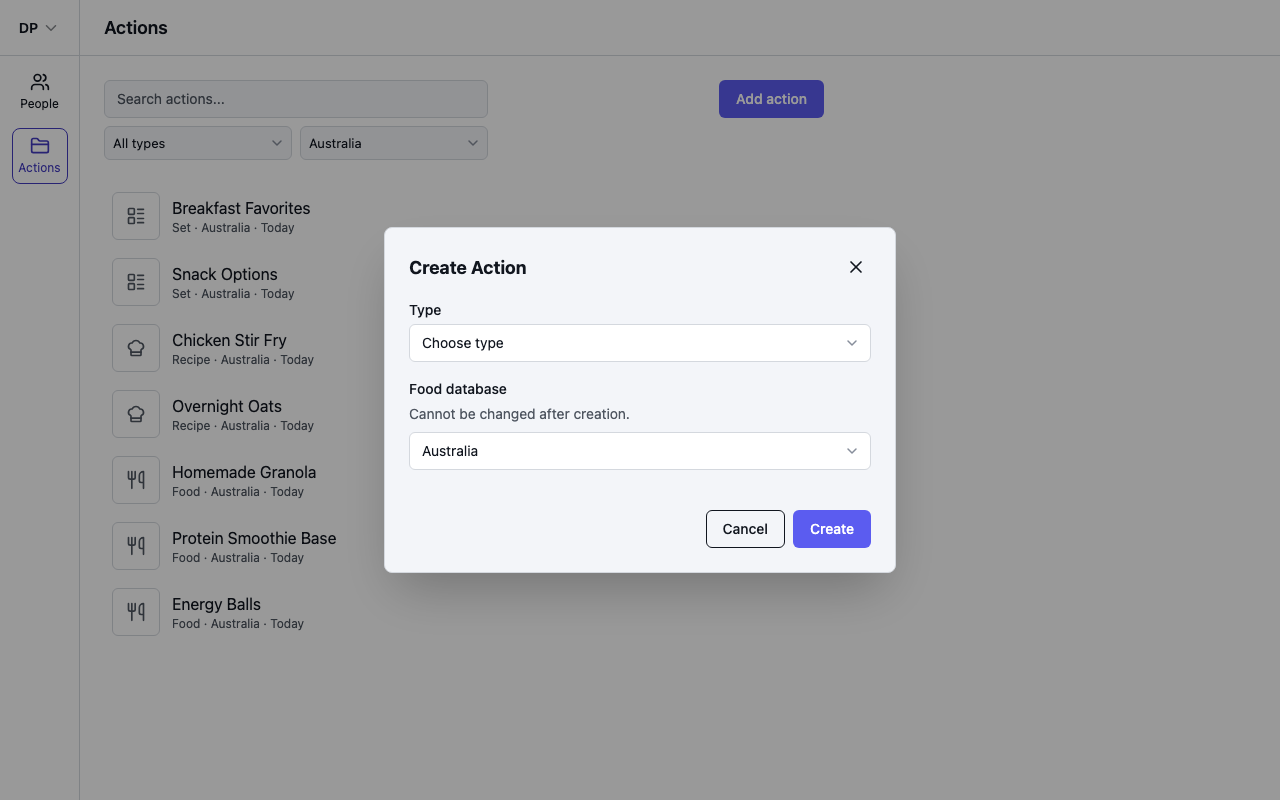
The food database is fixed once the action is created — the action's page shows which database it uses, and to move to a different database you create a new action. An action appears in a profile's diary search when the profile uses the same food database, so create your actions in the database your profiles use — see Choose a food database.
Find your actions
The Actions page lists everything in your workspace, most recently updated first. Use the search box, the type filter (Food, Recipe or Set) and the database filter to narrow the list. Each row shows the action's type and database.
Use them in the diary
Your actions show up in the Add to Diary search next to database foods — filter with the Food, Recipe or Set chips. Diary entries keep the nutrition values from the moment you logged them, so editing an action later changes future entries, not past ones.